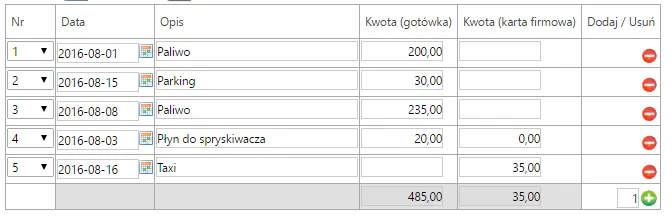

Import Data from Excel
August 4, 2016
Features
Features
Data Import
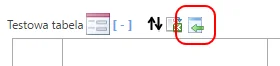
Version 2016.0005 introduced data imports from Excel files, including xls, xlsx and csv. The mechanism uses the clipboard: copy with Ctrl+C and paste with Ctrl+V. Select the icon next to the target table to start an import.

A practical way to prepare an Excel file in the correct format is to export the AMODIT table to Excel first.
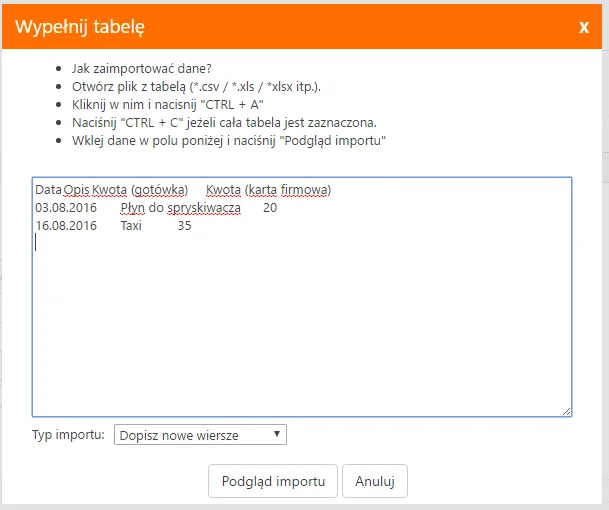
The import window accepts data copied from Excel. The first row must contain column names that match the existing AMODIT table.

Copy the selected range into the window. Choose whether the imported rows are added to the existing data or replace it.
Select Import preview to validate the data and see the expected result. AMODIT blocks the import when it detects errors.
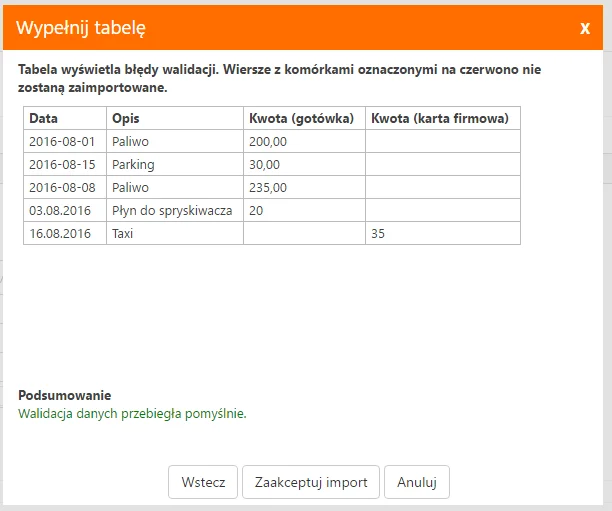
When the data is valid, approve the import.

The imported records then appear in the AMODIT table.